 Cookfolio
COOKFOLIO / Guides
How to share a menu with friends by link
Learn about browsing without signing in, shared information, disabling sharing, resetting links, and the difference between images and links.
1. Enable menu sharing
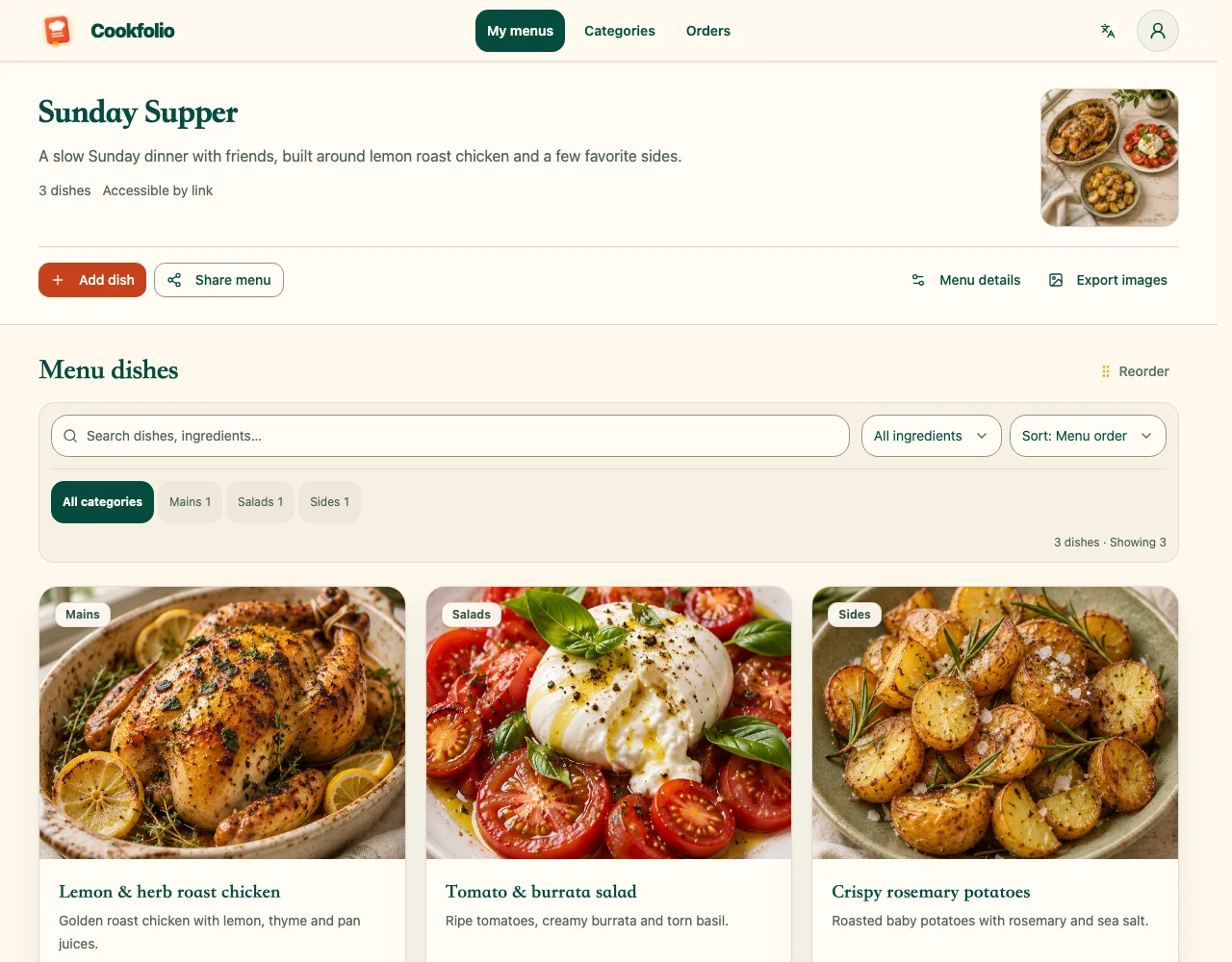
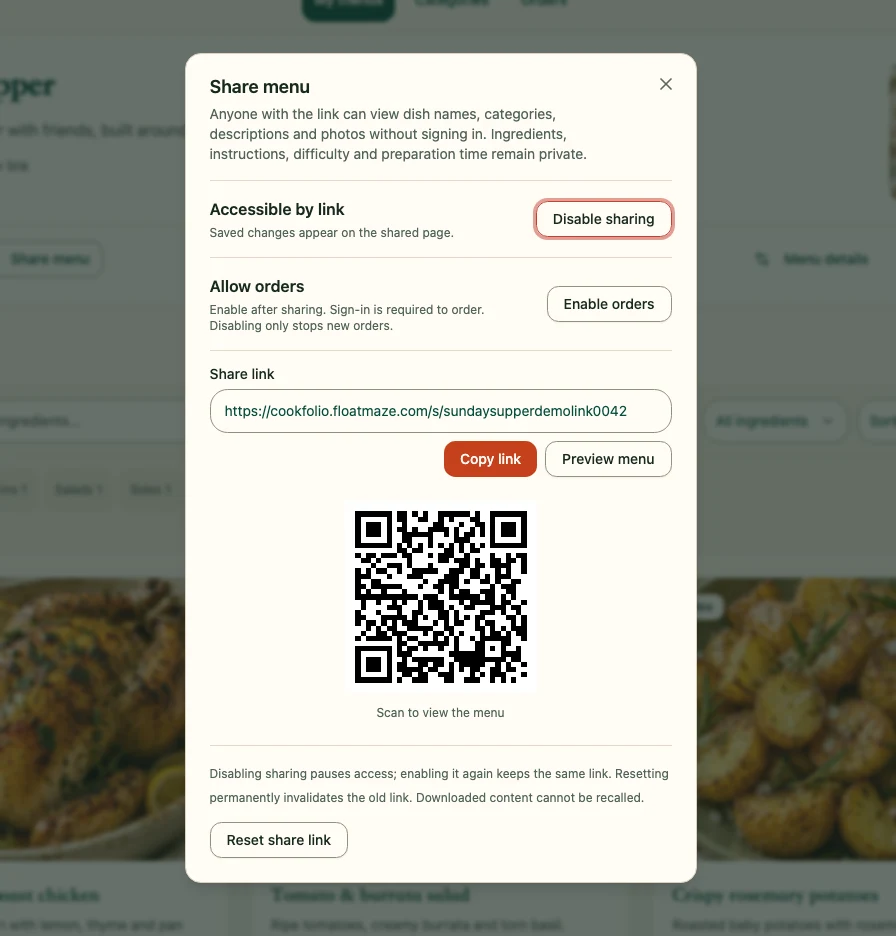
Menus are private by default. Enable link sharing in the menu’s sharing settings, then copy the generated link or send the QR code to friends and family. Anyone with the link can browse without signing in, so only send it to people you want to share with.
2. Check what visitors can see
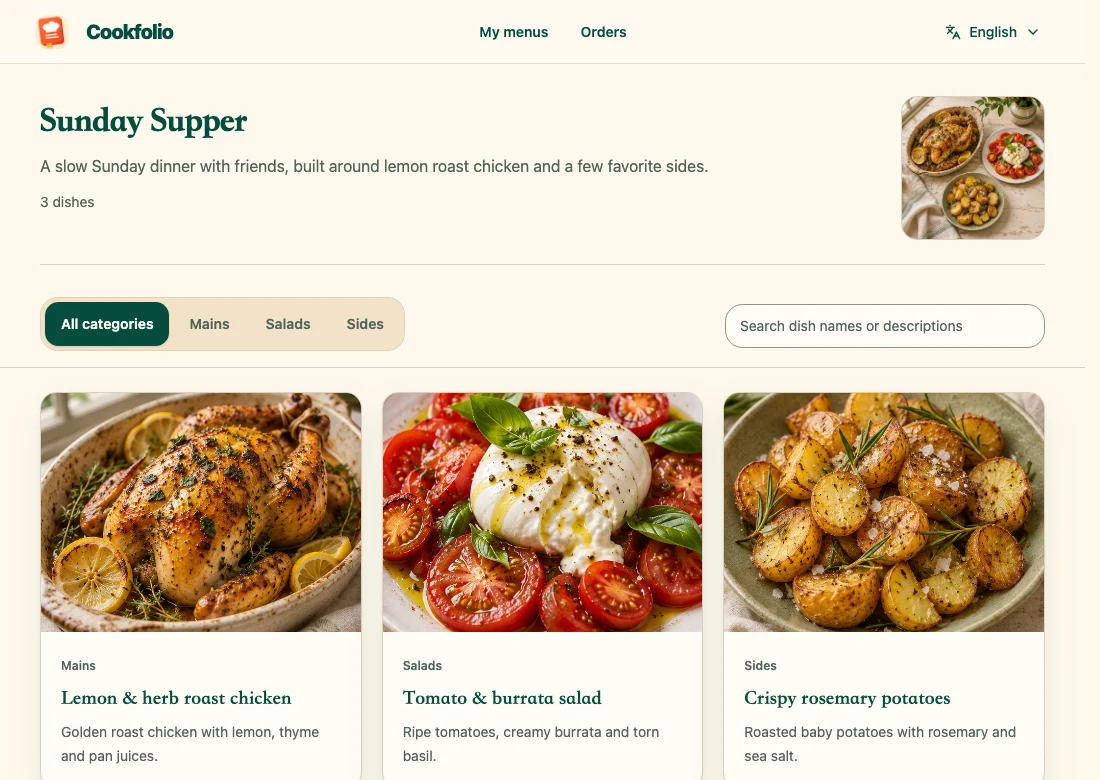
The shared page shows the menu name, description, cover, and each dish’s name, category, description, and images. Ingredients, cooking steps, difficulty, cooking time, and account details stay private. Open the link in a signed-out browser window to check the result.
3. Distinguish browsing from ordering
Browsing without signing in does not allow anonymous ordering. Visitors can submit orders only after the owner separately enables ordering; they must sign in and verify their email. If you only want to show dinner dishes, enabling link sharing is enough.
4. Disable or reset sharing as needed
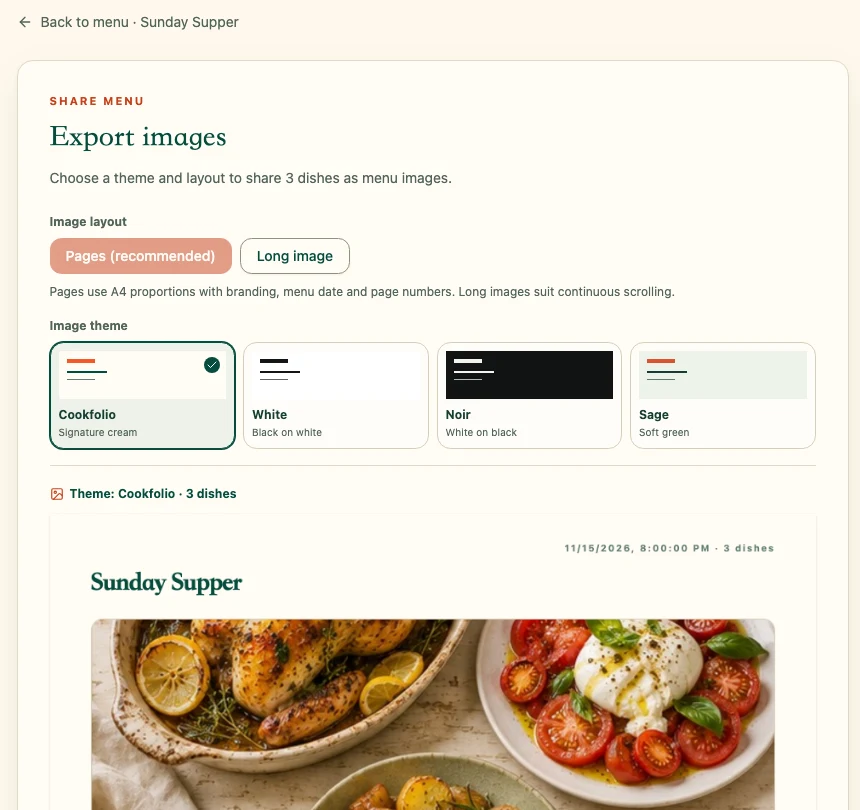
After you save menu changes, visitors can refresh to see them. Disabling sharing pauses the link and turns ordering off. Re-enabling sharing reuses the same link, but ordering must be enabled again. Resetting creates a new link and permanently invalidates the old one. Downloads, screenshots, and cached images cannot be recalled.